
How to Copy Files in SAS: A Simple Guide
Copying files in SAS is a common task for managing datasets, images, or text files. This concise tutorial covers two effective methods to copy files in SAS: a byte-for-byte approach and the faster FCOPY function. Whether you’re handling text or binary files, these methods will help you efficiently copy files in SAS.
-
- a byte-by-byte approach
-
- FCOPY function
Method 1: Byte-by-Byte File Copy (Slow Method)
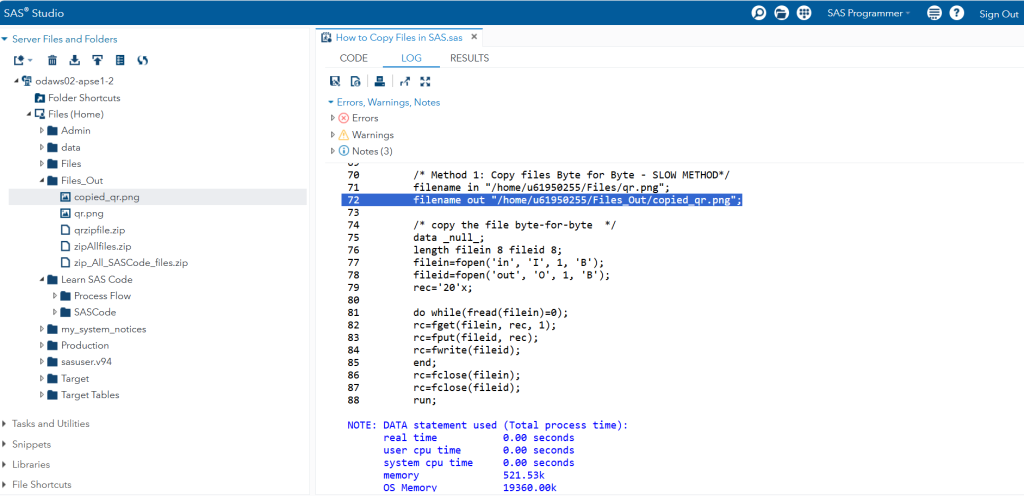
This method reads and writes files one byte at a time, making it reliable but slower, especially for large files.
				/* Method 1: Copy files Byte by Byte - SLOW METHOD*/

filename in "/home/u61950255/Files/qr.png";
filename out "/home/u61950255/Files_Out/copied_qr.png";

data _null_;
    length filein 8 fileid 8;
    filein=fopen('in', 'I', 1, 'B');
    fileid=fopen('out', 'O', 1, 'B');
    rec='20'x;

    do while(fread(filein)=0);
        rc=fget(filein, rec, 1);
        rc=fput(fileid, rec);
        rc=fwrite(fileid);
    end;
    rc=fclose(filein);
    rc=fclose(fileid);
run;

filename in clear;
filename out clear;
Explanation
- filename statements define the input and output file paths.
- fopen opens files in binary mode (‘B’) for reading (‘I’) and writing (‘O’).
- The do while loop reads each byte and writes it to the output file.
- fclose closes both files, and filename clear releases the file references.
Method 2: Using FCOPY Function (Fast Method)
The FCOPY function is a faster, built-in SAS method to copy files, supporting both text and binary files.
2.1 Copying Text Files
				options msglevel=i;
filename src "/home/u61950255/Files/qr.txt";
filename destn "/home/u61950255/Files_Out/copied_qr2.txt";

data _null_;
    length msg $ 384;
    rc=fcopy("src", "destn");

    if rc=0 then
        put 'Copied SRC to DEST.';
    else
        do;
            msg=sysmsg();
            put rc=msg=;
        end;
run;
2.2 Copying Binary Files (e.g., .png, .xls, .jpg)
				options msglevel=i;
filename src "/home/u61950255/Files/qr.png" recfm=n;
filename destn "/home/u61950255/Files_Out/copied_qr2.png" recfm=n;

data _null_;
    length msg $ 384;
    rc=fcopy("src", "destn");

    if rc=0 then
        put 'Copied SRC to DEST.';
    else
        do;
            msg=sysmsg();
            put rc=msg=;
        end;
run;
Explanation
-
options msglevel=i enables detailed log messages for FCOPY.
-
filename statements specify source (src) and destination (destn) paths.
-
recfm=n is used for binary files to ensure proper handling of formats like .png or .xls.
-
fcopy performs the copy, and the return code (rc) indicates success (0) or failure (non-zero).
-
Errors are captured using sysmsg() for debugging.

Key Tips for Copying Files in SAS
-
Use FCOPY for Speed: It’s significantly faster than the byte-for-byte method, especially for large files.
-
Check File Paths: Ensure input and output paths are correct to avoid errors.
-
Binary vs. Text: Use recfm=n for binary files to prevent corruption.
-
Monitor the Log: Set options msglevel=i to troubleshoot issues.
Copying files in SAS is straightforward with the right method. The byte-for-byte approach is reliable for small files, while FCOPY is ideal for efficiency and versatility. Use these techniques to streamline your file management tasks in SAS.
FAQ – Copy Files In SAS
The simplest way to copy files in SAS is by using the FCOPY function. It’s fast, supports both text and binary files, and requires minimal setup. You just need to define the source and destination file paths and check the return code for success.
To copy binary files (e.g., .png, .xls, .jpg), use the FCOPY function with the recfm=n option in the filename statement. This ensures the file is copied without corruption, preserving its binary format.
File copy failures in SAS often occur due to incorrect file paths, insufficient permissions, or mismatched file types (e.g., treating a binary file as text). Always verify paths, ensure write access to the destination, and use appropriate settings like recfm=n for binary files.
When using FCOPY, check the return code. A return code of 0 indicates a successful copy. You can also enable detailed logging with options msglevel=i to see success or error messages in the SAS log for troubleshooting.
SAS doesn’t have a built-in function to copy multiple files in one command. You need to loop through each file using a macro or list the files individually with FCOPY. For bulk operations, consider using operating system commands (e.g., X command in SAS) if permitted.